Windows GTK Installer - Haskell GUI Development
TLDR: Who reads this anyhow… here is automation to set everything up
This script streamlines the installation of Git, MSYS2, and the complete Haskell development suite with GTK support for GUI development. Perfect for getting up and running with Haskell GUI programming without the usual Windows setup headaches. Just run the script and let it handle the heavy lifting!
Requirements: Windows 10/11, Admin rights, 5GB disk space, Internet connection
Usage:
1. Download the script below (or get it from GitHub)
2. Open PowerShell as Administrator
3. Run Set-ExecutionPolicy -ExecutionPolicy RemoteSigned -Scope CurrentUser
4. Execute .\Win-GTK-Installer.ps1
5. Follow the prompts and restart when done
Or get it from: GitHub Repository
Installation Script
# Author: Chaotic-Guru
# Intent: Windows 10/11 Haskell GUI Dev setup
# Go as FAST... as you carefully can

Add-Type -AssemblyName System.Windows.Forms

$userChoice = [System.Windows.Forms.MessageBox]::Show('Your about to Install Git, MSYS2 and the Haskell Suite?', 'Confirmation', [System.Windows.Forms.MessageBoxButtons]::YesNo)

if ($userChoice -eq [System.Windows.Forms.DialogResult]::No) {
    Write-Host "Script aborted by user."
    exit
}

function Check-Program {
    param (
        [string]$program
    )

    $programPath = Get-Command $program -ErrorAction SilentlyContinue
    return $programPath -ne $null
}

# Step 1: Check if Git is installed
$gitInstalled = Check-Program "git"
if (-not $gitInstalled) {
    Write-Host "Git is not installed. Installing Git..." -ForegroundColor Green
    $gitURL = "https://github.com/git-for-windows/git/releases/download/v2.48.1.windows.1/Git-2.48.1-64-bit.exe"
    $outpath = "$PSScriptRoot\GitInstaller.exe"
    $wc = New-Object System.Net.WebClient
    $wc.DownloadFile($gitURL, $outpath)
    Write-Host "Running Git installer..." -ForegroundColor Green
    Start-Process -FilePath $outpath -Wait
} else {
    Write-Host "Git is already installed." -ForegroundColor Yellow
}

# Step 2: Check if MSYS2 is installed
$mysys2Location = "C:\msys64\mingw64.exe"
$msys2Installed = Check-Program $mysys2Location
if (-not $msys2Installed) {
    Write-Host "MSYS2 is not installed. Installing... Please Wait!" -ForegroundColor Green
    $url = "https://github.com/msys2/msys2-installer/releases/download/2025-02-21/msys2-x86_64-20250221.exe"
    $outpath = "$PSScriptRoot\msys2-installer.exe"
    $wc = New-Object System.Net.WebClient
    $wc.DownloadFile($url, $outpath)
    Start-Process -FilePath $outpath -Wait
    Start-Sleep 5
    Write-Host "Updating MSYS2" -ForegroundColor Yellow
    & "C:\msys64\usr\bin\bash.exe" -lc "pacman -Syu --noconfirm"
    Start-Sleep 5
    Write-Host "Adding pkg-config..." -ForegroundColor Green
    & "C:\msys64\usr\bin\bash.exe" -lc "pacman -S pkg-config --noconfirm"
    Start-Sleep 5
    Write-Host "Adding GTK packages..." -ForegroundColor DarkYellow
    & "C:\msys64\usr\bin\bash.exe" -lc "pacman -S -q --noconfirm git mingw-w64-x86_64-gtk3 mingw64/mingw-w64-x86_64-pkg-config mingw64/mingw-w64-x86_64-gobject-introspection mingw64/mingw-w64-x86_64-gtksourceview3 mingw64/mingw-w64-x86_64-webkitgtk3 mingw64/mingw-w64-x86_64-pkg-config mingw64/mingw-w64-x86_64-gobject-introspection mingw64/mingw-w64-x86_64-gtksourceview5 mingw64/mingw-w64-x86_64-gtk4 mingw64/mingw-w64-x86_64-atk"
} else {
    Write-Host "MSYS2 is already installed." -ForegroundColor Yellow
    Write-Host "Updating MSYS2" -ForegroundColor DarkYellow
    & "C:\msys64\usr\bin\bash.exe" -lc "pacman -Syu --noconfirm"
    Start-Sleep 5
    Write-Host "Adding pkg-config..." -ForegroundColor Green
    & "C:\msys64\usr\bin\bash.exe" -lc "pacman -S pkg-config --noconfirm"
    Start-Sleep 5
    Write-Host "Adding GTK packages..." -ForegroundColor DarkYellow
    & "C:\msys64\usr\bin\bash.exe" -lc "pacman -S -q --noconfirm git mingw-w64-x86_64-gtk3 mingw64/mingw-w64-x86_64-pkg-config mingw64/mingw-w64-x86_64-gobject-introspection mingw64/mingw-w64-x86_64-gtksourceview3 mingw64/mingw-w64-x86_64-webkitgtk3 mingw64/mingw-w64-x86_64-pkg-config mingw64/mingw-w64-x86_64-gobject-introspection mingw64/mingw-w64-x86_64-gtksourceview5 mingw64/mingw-w64-x86_64-gtk4 mingw64/mingw-w64-x86_64-atk"
}

# Step 3: Set environment variables (check if they are already set)
$pkgConfigPath = [System.Environment]::GetEnvironmentVariable("PKG_CONFIG_PATH", [System.EnvironmentVariableTarget]::User)
$xdgDataDirs = [System.Environment]::GetEnvironmentVariable("XDG_DATA_DIRS", [System.EnvironmentVariableTarget]::User)
$pathEnv = [System.Environment]::GetEnvironmentVariable("PATH", [System.EnvironmentVariableTarget]::User)

# Only add if PKG_CONFIG_PATH or XDG_DATA_DIRS not set
if (-not $pkgConfigPath) {
    [System.Environment]::SetEnvironmentVariable("PKG_CONFIG_PATH", "C:\msys64\mingw64\lib\pkgconfig", [System.EnvironmentVariableTarget]::User)
}
if (-not $xdgDataDirs) {
    [System.Environment]::SetEnvironmentVariable("XDG_DATA_DIRS", "C:\msys64\mingw64\share", [System.EnvironmentVariableTarget]::User)
}

# Add MSYS2 to PATH if not already added
if (-not ($pathEnv -contains "C:\msys64\mingw64\bin")) {
    [System.Environment]::SetEnvironmentVariable("PATH", "C:\msys64\mingw64\bin;" + $pathEnv, [System.EnvironmentVariableTarget]::User)
}

# Step 4: Check if Haskell/Cabal is installed
$cabalInstalled = Check-Program "cabal"
if (-not $cabalInstalled) {
    Write-Host "Cabal is not installed. Installing... Please Wait!" -ForegroundColor Green
    [System.Net.ServicePointManager]::SecurityProtocol = [System.Net.ServicePointManager]::SecurityProtocol -bor 3072
    try {
        & ([ScriptBlock]::Create((Invoke-WebRequest https://www.haskell.org/ghcup/sh/bootstrap-haskell.ps1 -UseBasicParsing)))
    } catch {
        Write-Error "Failed to install Haskell/Cabal: $_"
    }
} else {
    Write-Host "Cabal is already installed." -ForegroundColor Yellow
}

# Step 5: Create a new Haskell project if not already created
$projectFolder = "gi-gtk-test"
if (-not (Test-Path $projectFolder)) {
    Write-Host "Creating new Haskell project 'gi-gtk-test' using the 'simple' template..." -ForegroundColor Green
    cabal init gi-gtk-test --non-interactive --quiet
} else {
    Write-Host "Project 'gi-gtk-test' already exists, skipping 'cabal init'." -ForegroundColor Yellow
}

# Navigate to the project directory
cd $projectFolder
New-Item -ItemType Directory -Name "src\UI" -Force

$sharedFunctions = @"
module UI.Shared (createButton) where

import GI.Gtk as Gtk
import qualified Data.Text as T

createButton :: String -> IO Gtk.Button
createButton label = Gtk.buttonNewWithLabel (T.pack label)
"@

New-Item -ItemType File -Path "src\UI\" -Name "Shared.hs" -Value $sharedFunctions

$statusPageContent = @"
{-# LANGUAGE OverloadedStrings #-}

module UI.StatusPage where

import qualified GI.Gtk as Gtk

createStatusPage :: IO ()
createStatusPage = do
    win <- Gtk.windowNew
    Gtk.setWindowTitle win "Testing GUI Dev on Windows"
    Gtk.setWindowDefaultWidth win 300
    Gtk.setWindowDefaultHeight win 100

    -- Set a text buffer (Testing, no real use for this yet)
    textView <- Gtk.textViewNew
    buffer   <- Gtk.textViewGetBuffer textView

    Gtk.textViewSetBuffer textView ( Just buffer )
    scrolledWindow <- Gtk.scrolledWindowNew
    Gtk.scrolledWindowSetChild scrolledWindow (Just textView)
    Gtk.windowSetChild win (Just scrolledWindow)
    Gtk.widgetSetVisible win True

    --return win
"@

New-Item -ItemType File -Path "src\UI\" -Name "StatusPage.hs" -Value $statusPageContent

$layoutContent = @"
{-# LANGUAGE OverloadedLabels, OverloadedStrings #-}

module UI.Layout where

import qualified GI.Gtk as Gtk
import Control.Monad (zipWithM_)

setupGrid :: [(Gtk.Widget, (Int, Int))] -> IO Gtk.Grid
setupGrid widgetPositions = do
    grid <- Gtk.gridNew
    zipWithM_ (\(widget, (col, row)) _ -> Gtk.gridAttach grid widget (fromIntegral col) (fromIntegral row) 1 1) widgetPositions ([1..] :: [Int])
    return grid
"@

New-Item -ItemType File -Path "src\UI\" -Name "Layout.hs" -Value $layoutContent

#
Remove-Item "gi-gtk-test.cabal" -Force

$CabalNewContent = @"
cabal-version:      3.12
name:               gi-gtk-test
version:            0.1.0.0
license:            NONE
author:             Chaotic-Guru
maintainer:         Unknown
build-type:         Simple
extra-doc-files:    CHANGELOG.md

common shared-props
  default-language: Haskell2010
  build-depends:
    base >=4 && <5
    , gi-gtk4 >=4.0
    , gi-glib >=2.0
    , gi-gio >=2.0
    , haskell-gi-base
    , text
  ghc-options: -Wall -Wmissing-home-modules -threaded

library
    import: shared-props
    exposed-modules:
      UI.StatusPage
      UI.Shared
      UI.MainWindow
    hs-source-dirs: src

executable gi-gtk-test
    import:           shared-props
    main-is:          Main.hs
    build-depends:
      , gi-gtk4 >=4.0
      , gi-glib >=2.0
      , gi-gio >=2.0
      , haskell-gi-base
      , text
      , base >=4 && <5
    hs-source-dirs:   src, app
    other-modules:
      UI.Layout
      UI.MainWindow
      UI.Shared
      UI.StatusPage
    default-language: Haskell2010

"@

New-Item -ItemType File -Name "gi-gtk-test.cabal" -Value $CabalNewContent

$mainWindowContent = @"
{-# LANGUAGE OverloadedStrings, OverloadedLabels, TupleSections #-}

module UI.MainWindow where

import qualified GI.Gtk as Gtk
import UI.Shared (createButton)
import UI.StatusPage (createStatusPage)
import UI.Layout (setupGrid)

createMainWindow :: IO Gtk.Window
createMainWindow = do
    win <- Gtk.windowNew
    Gtk.setWindowTitle win "Testing GUI Dev on Windows"
    Gtk.setWindowDefaultWidth win 300
    Gtk.setWindowDefaultHeight win 100

    testButton <- createButton "Just another button"

    _ <- Gtk.on testButton #clicked createStatusPage

    widgetPositions <- sequence
        [ (, (1, 1)) <$> Gtk.toWidget testButton ]

    grid <- setupGrid widgetPositions
    Gtk.windowSetChild win (Just grid)

    return win
"@

New-Item -ItemType File -Path "src\UI\"-name "MainWindow.hs" -value $mainWindowContent


# Step 6: Modify Main.hs with example code (if not already done)
$mainHsPath = ".\app\Main.hs"
$mainHsContent = @"
{-# LANGUAGE OverloadedStrings, OverloadedLabels #-}

module Main (Main.main) where

import qualified GI.Gtk as Gtk
import qualified GI.Gio as Gio
import UI.MainWindow (createMainWindow)


main :: IO ()
main = do
    -- Create application
    app <- Gtk.applicationNew (Just "com.example.gi-gtk-test") []

    -- Handle application activation
    _ <- Gtk.on app #activate $ do
        mainWin <- createMainWindow
        Gtk.windowSetApplication mainWin (Just app)
        _ <- Gtk.on mainWin #closeRequest $ do
            Gio.applicationQuit app
            return False
        Gtk.widgetSetVisible mainWin True

    -- Run the application (this handles GTK initialization)
    _ <- Gio.applicationRun app Nothing
    return ()
"@


Write-Host "Creating Main.hs file..." -ForegroundColor Green
New-Item -Path $mainHsPath -ItemType File -Value $mainHsContent -Force


# Step 7: Build and run the Haskell project using cabal
# Using cabal run creates/builds and runs the project
Write-Host "Running the project after a short sleep to let Windows catch its breath..." -ForegroundColor Green
Write-Host "If failure.. delete gi-gtk-test directory, reboot and rerun script" -ForegroundColor Yellow
Start-Sleep -Seconds 20
cabal run gi-gtk-test
Building and Running the Project
Once the installation script completes, you’ll have a gi-gtk-test directory with a fully configured Haskell GTK4 project. Here’s how to compile and run it:
Quick Start
Navigate to the project directory and run:
cd gi-gtk-test
cabal update
cabal run gi-gtk-test
The cabal update command updates the package index to ensure you have the latest package information. This is especially important on a fresh installation.
Understanding cabal build vs cabal run
Both commands compile your project, but they serve different purposes:
cabal build:
- Only compiles the project - it doesn’t run it
- Useful when you want to check for compilation errors without executing
- Faster if you just need to verify the code compiles
- Outputs the executable to dist-newstyle/build/ (you’d need to manually run it)
- Example: cabal build gi-gtk-test
cabal run:
- Compiles AND runs the project in one command
- More convenient for development and testing
- Automatically rebuilds if source files changed
- Perfect for quick iteration cycles
- Example: cabal run gi-gtk-test
When to use which:
- Use cabal build when you want to compile without running (e.g., CI/CD pipelines, checking for errors)
- Use cabal run for day-to-day development - it’s what you’ll use most often
For our GTK application, cabal run gi-gtk-test is the go-to command since you’ll want to see the GUI window appear after compilation.
Expected Output
If everything ran correctly, you should see a successful GTK test window like this:
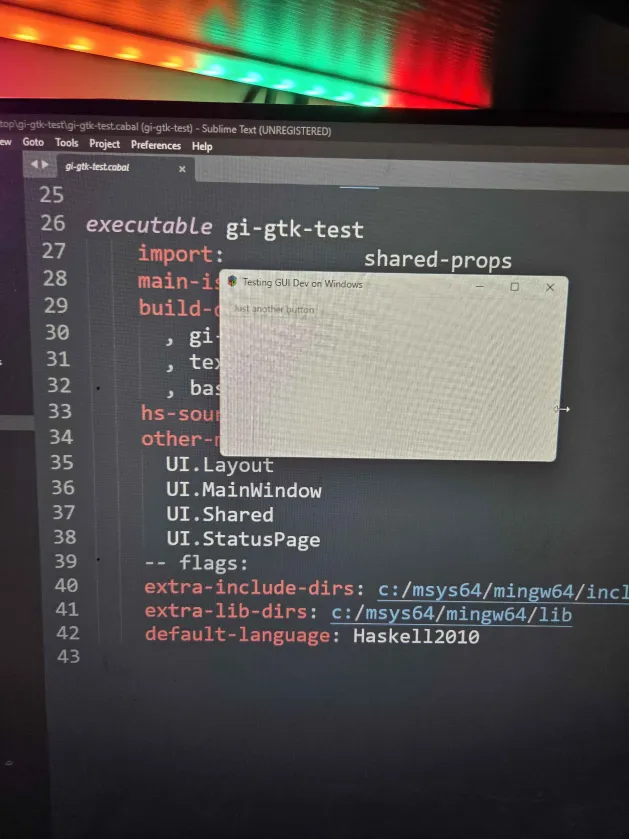
✅ Success! Your Haskell GTK development environment is ready to go!
What’s Next?
Now that you have your development environment set up and a working GTK4 application, you might be wondering: “What does all this code actually do?”
In our next post, Building GUI Apps with Haskell and GTK4 - Understanding the Setup Script, we’ll break down the Haskell code generated by this installation script. We’ll explore how the modular project structure works, explain each component (from UI.Shared to Main.hs), and dive into the GTK4 Application pattern that powers your GUI. You’ll learn how event handling works, how to manage state, and how to build more complex interactive applications.
Ready to understand what’s happening under the hood? Let’s dive deeper into the code!